


- Free Word Utilities
- Free Sample Letter Template with Dialog
- Docubar
- VFR Flight Planner
- Word Tips
- Word Locations
Templates: locations and security
Find out what the template folder locations are and change them
Store templates to the correct folders
Save emailed template attachments to the Word template folders
Find out what the template folder locations are and change them
User Templates |
The location where templates used to create documents are stored including personal templates and the Normal (Blank) template. |
Workgroup templates |
Sometimes set to point to a network share where shared, company-wide, templates are stored. |
Startup |
Templates stored here are automatically loaded as Addins to Word. These templates provide addin functions, toolbars and ribbons and customisations |
Factory Startup |
This is another Startup location where addin templates can be stored. It is near the location where Office is installed, typically C:\Program Files\Microsoft Office\Office14\STARTUP. Best to avoid using this as it does not conform to standard addin controls. |
In Word 2000, XP, 2003 do: Tools, Options, File Locations
In Word 2007 do: Office button, Word Options, Advanced, (now scroll down the right hand side to near the bottom and click...) File locations
In Word 2010 and 2013 do: File, Options, Advanced, (now scroll down the right hand side to near the bottom and click...) File locations
You see the following dialog. Look at the location of User templates, Workgroup templates and Startup.
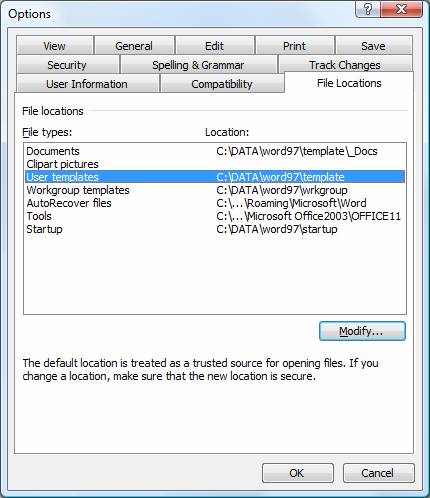
If you cannot see the whole location path name, click Modify and then drop down the Look in box to see the full path. Note that this navigation shows only the folders and not the contents of any folder.
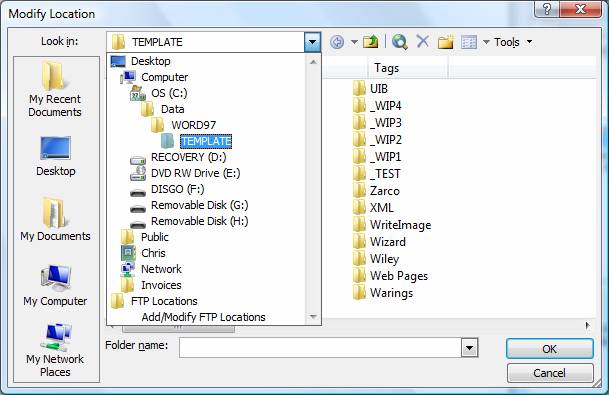
Note down what they are set to.
Usually they are set as follows:
User Templates: C:\Document and Settings\<user name>\Application data\Microsoft\Templates
(or C:\Users\<username>\AppData\Roaming\Microsoft\Templates)
Workgroup: is often left blank or may be set to a network share.
Startup: C:\Document and Settings\<user name>\Application data\Microsoft\Word\Startup
(or C:\Users\<username>\AppData\Roaming\Microsoft\Word\STARTUP)
Store templates to the correct folders
Use File Explorer (My Computer) to move the templates to the Word template folders.
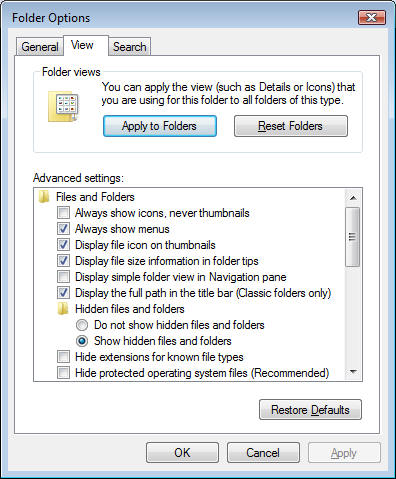
If when you come to use File Explorer (My Computer) to move the files you cannot see the Application Data folder then you need to make Hidden folders visible in Explorer by doing Tools, Folder Options, View and click Show hidden files and folders:
Save emailed template attachments to the Word template folders
It is natural to open an emailed template attachment by double-clicking it from the email which opens the attachment in Word, then doing Save-as in Word. However this does not work because the act of double-clicking a template attachment does not open the template but instead opens a new document based on the template. Saving that new document as a template means that the template will not have any of the macros or customisations.
So, always right-click the template attachment and do Save-as
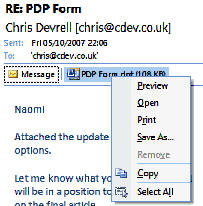
and save to the template folders described above.
Macro Security
For Word 2000, XP, 2003
Do: Tools, Macro, Security... and set macro security as required. You can set to Low temporarily if you are testing a new template. Remember to set it back to a higher level afterwards.
Click Trusted Publishers tab and make sure that the checkbox for Trust all installed add-ins and templates is checked.
For Word 2007
Do: Office button, Word Options, Trust Centre, Trust Centre Settings
Click Trusted Locations and make sure that the User Templates, Startup and, if applicable, Workgroup locations are on the trusted locations list. If not you can add them.
Click Macro settings and make sure that is set as required - you can set it to low for testing but normally set to Disable all with notification.
Click Message bar and check the option to Show blocked content message bar
For Word 2010 and 2013
Do: File, Options, Trust Centre, Trust Centre Settings
Click Trusted Locations and make sure that the User Templates, Startup and, if applicable, Workgroup locations are on the trusted locations list. If not you can add them.
Click Macro settings and make sure that is set as required - you can set it to low for testing but normally set to Disable all with notification.
Click Message bar and check the option to Show blocked content message bar
Check Addins
For Word 2000, XP, 2003
Do: Tools, Templates and Addins and look at the list of Global templates and Addins.
Check that the required ones are there. If not then likely that the addin template is not in the Startup folder.
For Word 2007
Do: Office button, Word Options, Add-ins.
At the bottom where it says Manage:, drop down to Word Add-ins and press Go.
Check that the required ones are there. If not then likely that the addin template is not in the Startup folder.
For Word 2010 and 2013
Do: File, Options, Add-ins.
At the bottom where it says Manage:, drop down to Word Add-ins and press Go.
Check that the required ones are there. If not then likely that the addin template is not in the Startup folder.